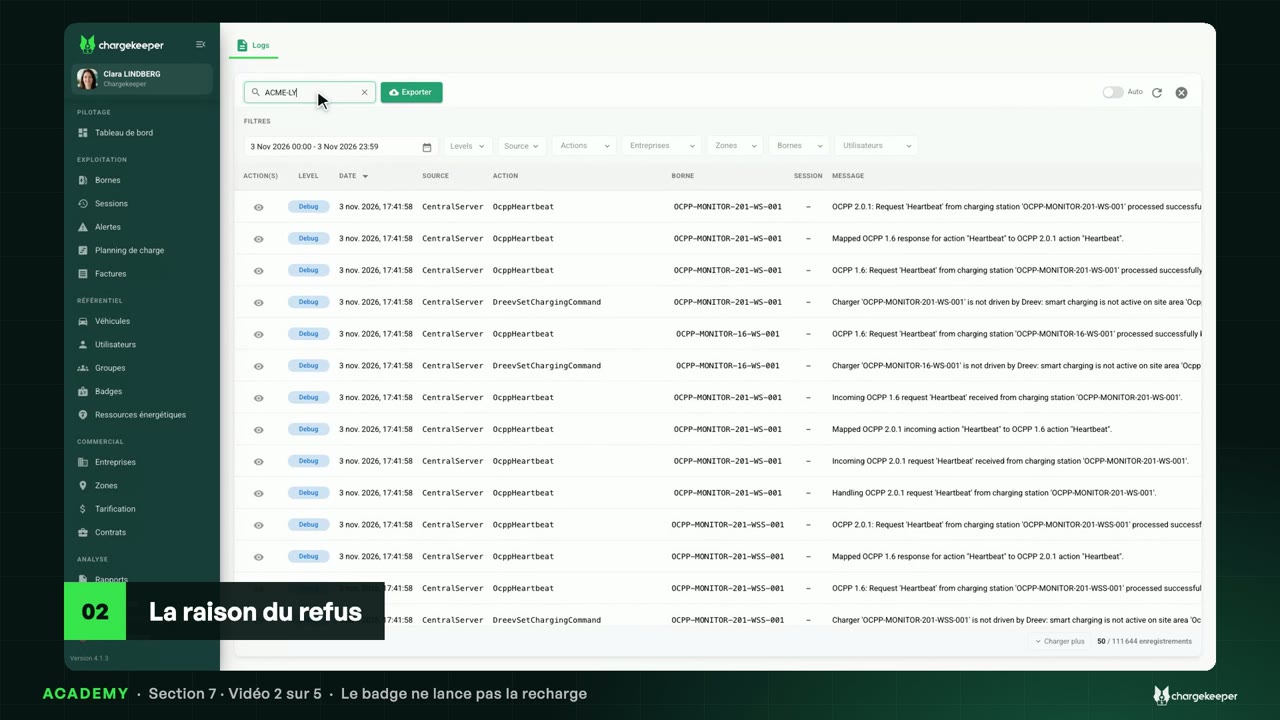
On site first, then the scale of the outage in the dashboard’s “Maintenance” tab. Then station by station: the status, the reason for the disconnection in the logs, and the token.
Transcript Click a paragraph to play the video from there.
Introduction 0:06 Hello! This section helps you solve the most common problems. We start with a charging station that won't connect: first on site, then in the platform. Before the platform 0:17 In the vast majority of cases, a station that no longer connects has no platform problem. The cause is on site: its network, or the station itself. 0:26 Most often, it's the network. A SIM card may be locked to another platform: it then blocks Chargekeeper's addresses. Or its data plan has run out, or the mobile antenna is down. 0:38 On a company network, it's often the router or the firewall blocking the station. Or its own network settings, such as the DNS server. 0:46 And sometimes it's the station: faulty, or after a firmware update pushed remotely by the manufacturer. 0:53 The right reflex: how many stations are affected? Just one, while the others are connected: the cause is on site, not in the platform. Many at once: think of a batch of SIM cards, or an antenna down in one region. Gauging the scale 1:08 To find out how many stations are affected, open the “Dashboard”, “Maintenance” tab. At the top: the stations disconnected right now, and their share of the fleet. 1:19 The “Incident timeline” shows a peak: six stations dropped off in the same hour. This isn't a station failure, it's an event. 1:29 The disconnected stations map pinpoints it: everything is concentrated in Marseille. 1:34 And “Most affected sites” confirms it: Plateforme Marseille Port is entirely offline. When a whole site goes down, it's often its internet access, its power supply, or the antennas in the region. 1:47 In Lyon, on the other hand, only one station is affected: ACME-LYS-04. That one, we diagnose individually. The station's status 1:57 In “Charging Stations”, the status column confirms it: ACME-LYS-04 is “Disconnected”, its neighbours “Connected”. 2:08 Hover over the status: you read how long the station has sent nothing. On its page, the “Hardware” tab also gives its “Last Seen” and its OCPP version. The logs 2:24 To find out why, open “Logs” and search for the station. Here, it no longer answered the platform's checks: after three attempts, the connection was closed. 2:35 Here, the platform cut off a station that no longer answered: the cause is investigated on site, or with the installer. The help center details these checks. A station that never connected 2:45 A station that has never connected does not appear in the list. Then check its token, in the “Connect a charger” tab: it must be “Valid”. An expired token is refused. 2:58 Then its URL type, here “Organization”. In “Cloud”, the identifier entered in the token must be exactly the station's own. The video “Connecting a station with a token” details these settings. The station is back 3:12 Once the problem is fixed, the station reconnects by itself and goes back to “Connected”. Key takeaways 3:20 To remember: most often, it's the network or the station, not the platform. One station or a whole site: the “Maintenance” tab tells you. “Logs” tells why; a station that never connected: check its token. 3:35 In the next video: an RFID card that doesn't start the charge.